
Creating a new report allows you to analyze client data efficiently, whether for case insights or bulk data exports. Follow the steps below to generate a comprehensive report tailored to your needs.
Generate a Report
Step 1: Go to Reports
- Navigate to the reports section within the platform
Step 2: Click "New Report"
- Select the new report button to start the report creation process.
Step 3: Add Clients
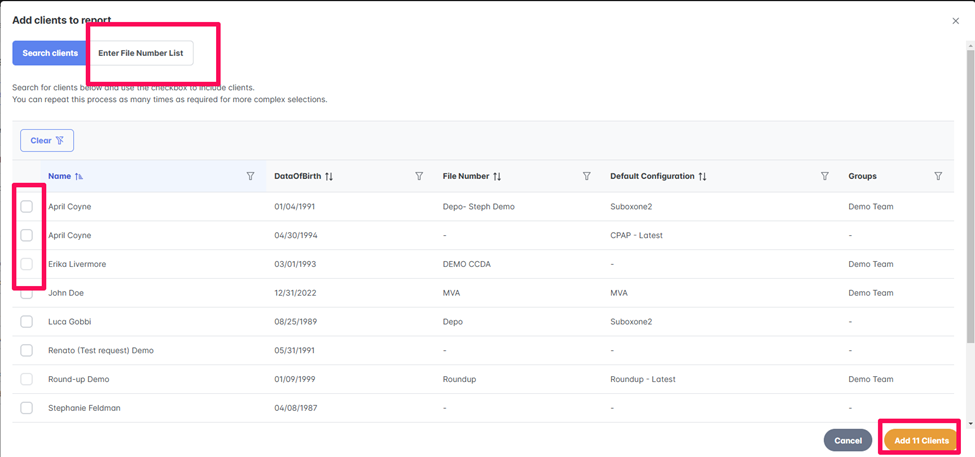
- Via the top right hand corner, select add clients
- You then have two options
- Option 1: search for the clients you'd like to include
- Option 2: Edit and copy-paste your case names from your CMS
- Click and clients
Step 4: Write a Title and Description
- Enter a clear, descriptive title and an optional description to specify the purpose of your report
Step 5: Select Report Type
- Choose one of the following report types based on your needs:
- Case Analysis: provides detailed insights into configuration category hits.
- Bulk Data export: exports raw data and tables for further analysis outside of the platform.
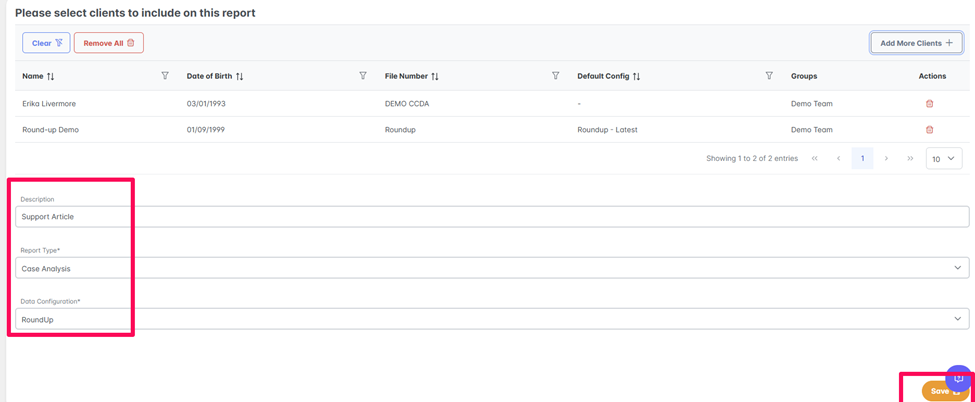
Step 6: Select Configuration File
- Choose the configuration file you wish to run against the selected clients.
Step 7: Click "Save"
- Save your report and allow a few minutes for processing.
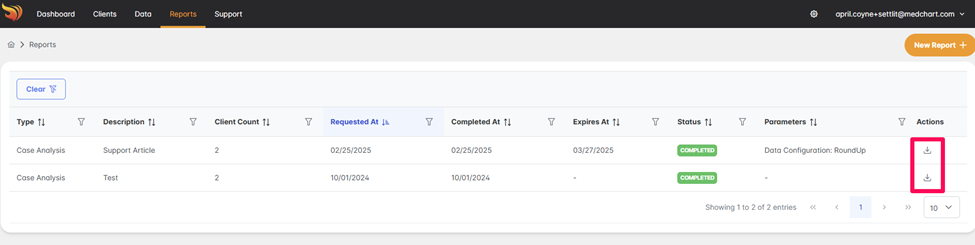
- Status indicators include:
- Processing: The report is currently running
- Failed: The report could not be generated
- Completed: the report is ready for download
Processing time depends on the number of clients selectedStep 8: Refresh and Download
- Once processing is complete, refresh your screen and download the report or data export.
Reviewing the Case Analysis Report
Once the report is generated, you can explore multiple tabs for detailed analysis:
1. Summary Tab
Provides a comprehensive count of all configuration category hits, within:
- Medications
- Conditions and Procedures
- Observations
2. Unique Codes Tab
Displays all unique codes found across the selected clients. This tab helps identify any codes missed in the configuration file.
3. Summary Tabs (Client-Level Data)
Shows a running list of data for each claimant, making it easy to review individual results.
4. Categorization Summary Tab
Offers a detailed count of each code's appearance for every client, providing insights into prevalence and trends.
Bulk Data Export
If you selected the Bulk Data Export option, a ZIP file will be available for download once the report completes. The files contained raw data and excel outputs for external analysis.