
To set up your Clio integration, we will need to first authorize access between Clio and SettLiT. To do this, reach out to your customer support rep or email customersupport@settlit.com
We'll walk you through what to expect with the integration, as well as ask which products should be automatically queried with each client synced over from Clio.
Once setup is initiated, you'll get an email asking you to connect SettLiT to Clio. Please click the Authorize Access button: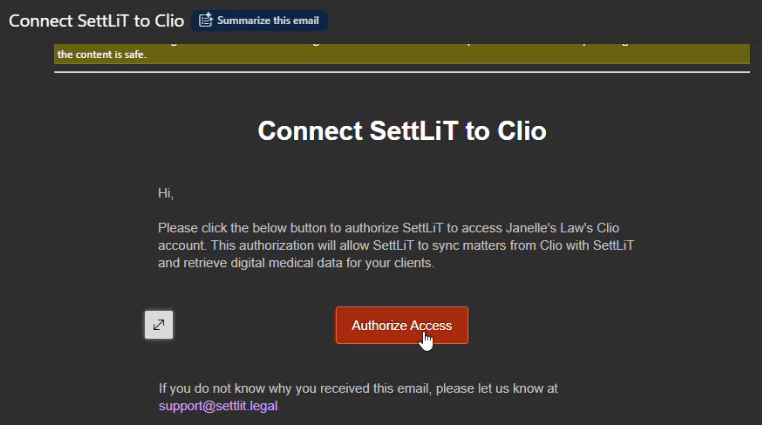
Clicking the Authorize Access button will take you to a page where you'll see which permissions granting access will allow. Please click Allow Access:
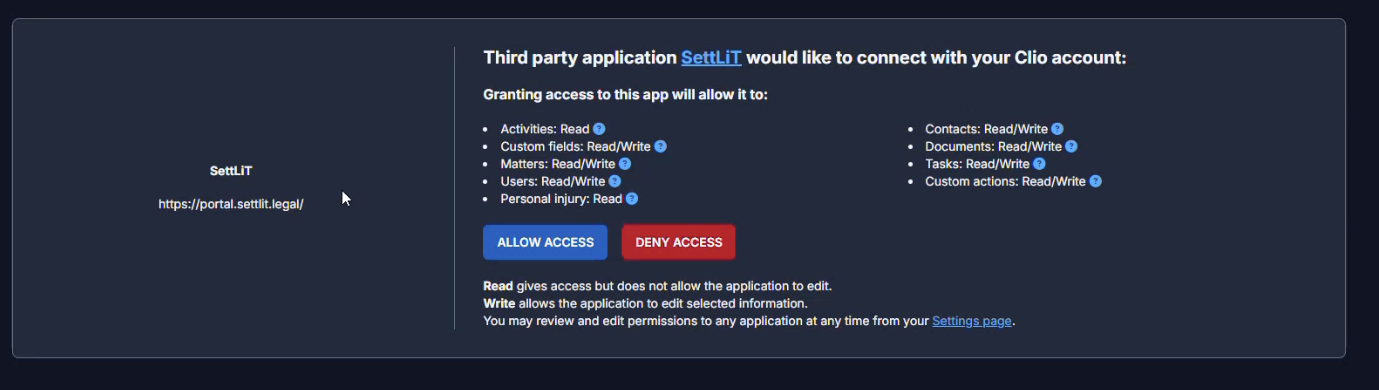
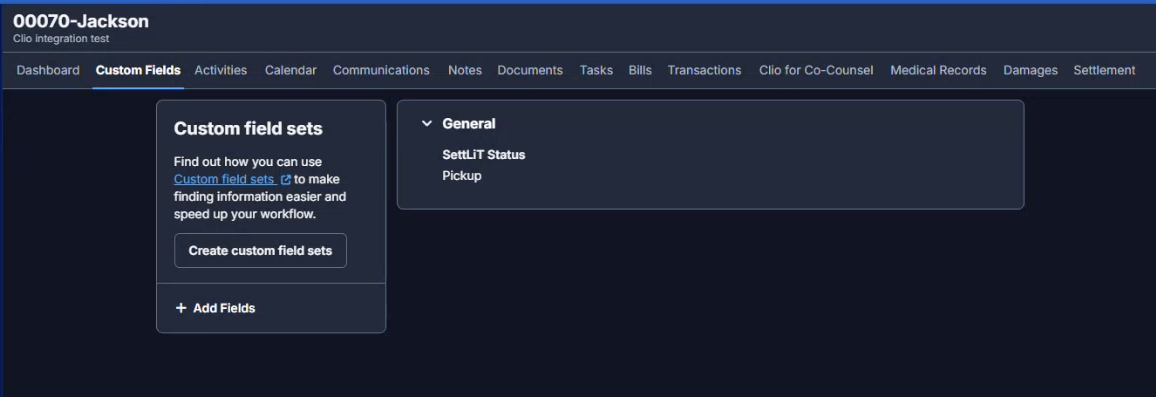
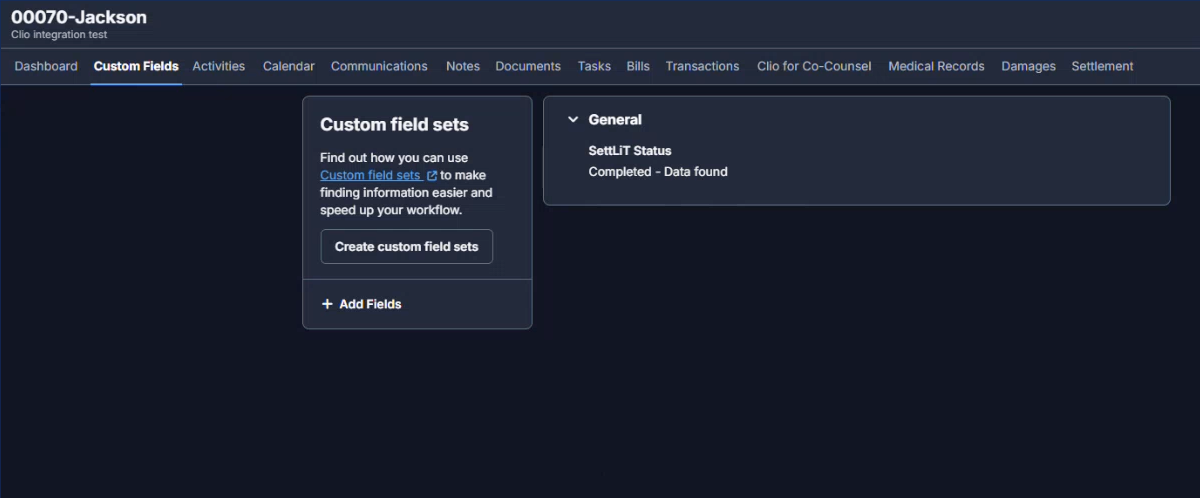
Once your account is connected, return to Clio, and open the Custom Fields tab of any Matter. You'll see a new SettLiT Status field. After you've set up a Matter, change the dropdown to the Pickup status:
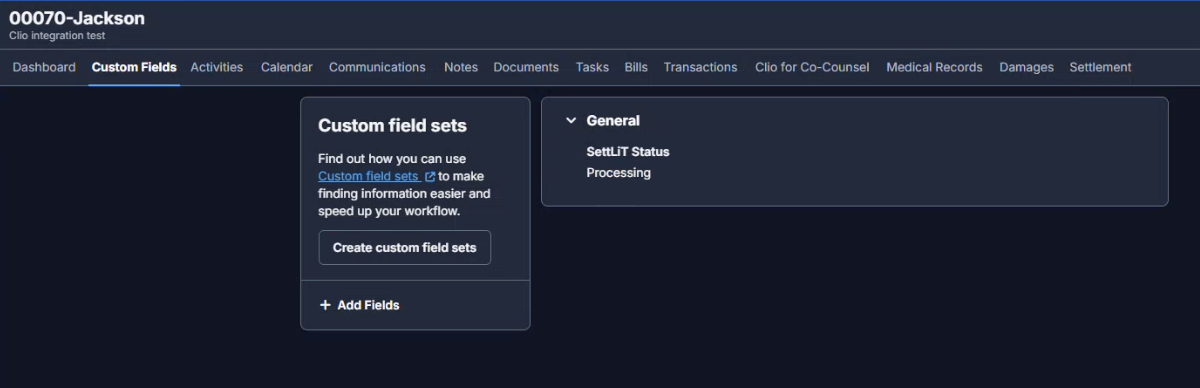
Once the status is in Pickup, the details of the Matter will be synced to SettLiT, and requests will be placed per the preferences you discussed with our team. The custom field will change to Processing during this time:
Once requests have finished processing, you'll get an email from SettLiT letting you know. In Clio, the status will change to either Completed - Data Found or Completed - No Data Found.
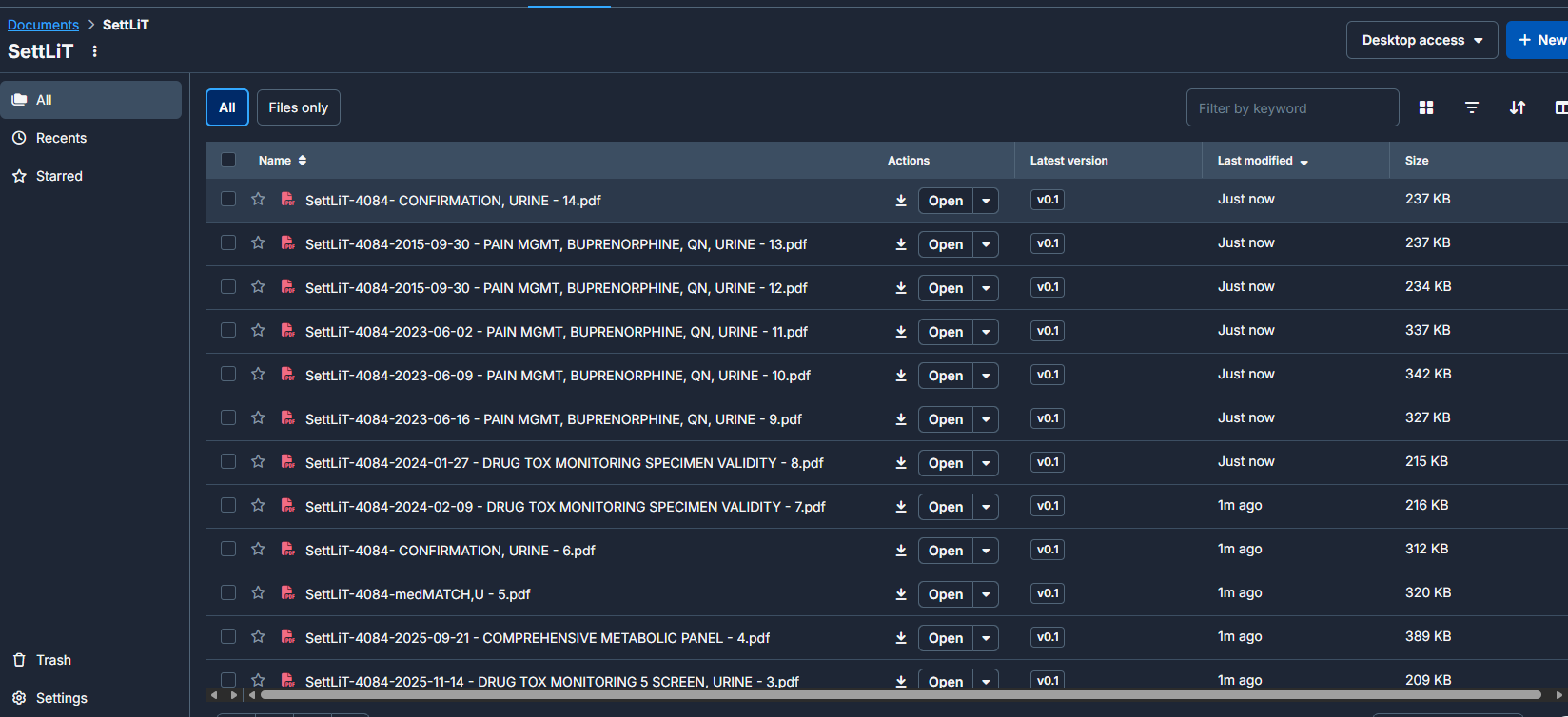
The newly synced records can be found in a SettLiT folder in the Documents tab of the Matter:
For deeper insight into the records, you can check your SettLiT portal.