
Customer (Law Firm) will be responsible for contacting SmartAdvocate to initiate the integration.
SmartAdvocate will then provide the integration key and URL to provide to the SettLiT team.
Step 1 for SmartAdvocate: Add SettLiT Provider to all clients on the back-end when the customer initiates relationship with SettLiT.
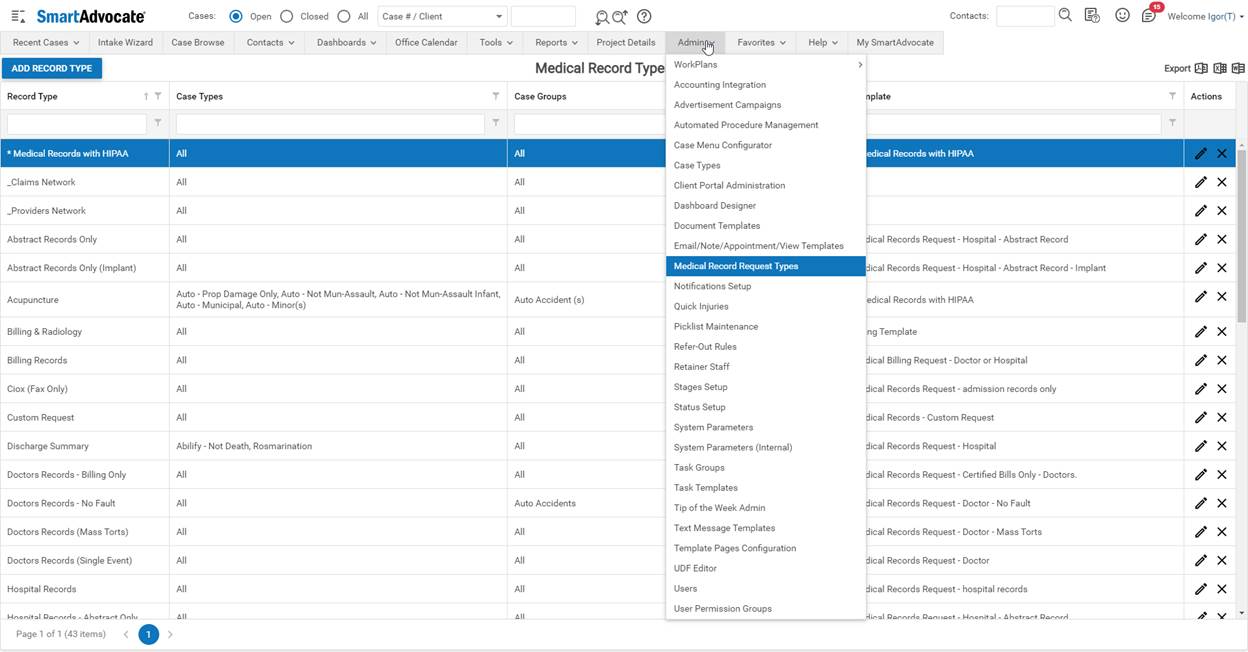
Step 2 for Customer: Add "Digital Query" to "Record Type on Add/Edit Medical Request"
Admin -> Medical Records Request Types:
Step 3 for SmartAdvocate: Add following options to "Status on Add/Edit Medical Request"
- SettLiT - Pickup
- SettLiT - Rejected
- SettLiT - Progress
- SettLiT - Completed
- SettLiT - No Records
Customer may contact SmartAdvocate rep to initiate Step 3 process.
Step 4 for Customer: Automatically attach the client signature when submitting an order
Admin -> System Parameters
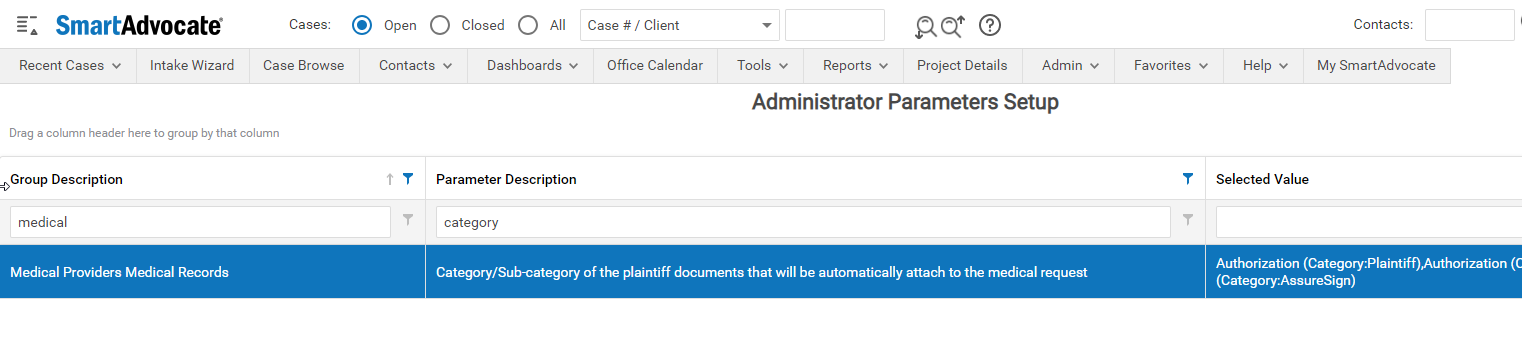
*Note: the Category/Sub-category for client signature file can be different for different firms.