
SettLiT now offers an efficient way to filter and organize extensive health data for your clients. This guide walks you through the steps to manage configuration files seamlessly within the SettLiT portal.
Example:Talc MT
Here’s how SettLiT streamlines the process for the Talc MT:
Create Configuration Categories:
- Proof of Injury: ICD C53.9 – Malignant Neoplasm: Cervix Uteri, Unspecified (Priority 1)
- Other Cancers: Keyword "Neoplasm" (Priority 2)
Data Filtering:
- When reviewing client data, SettLiT highlights entries matching ICD C53.9 as primary proof of injury, while general “Neoplasm” mentions are categorized under other cancers for further evaluation.
- Uncategorized Data: Any data not assigned to a specific category will automatically appear under the "Other" category, ensuring no information is overlooked.
This ensures your team prioritizes the strongest claims while keeping track of secondary conditions.
Step-by-Step Configuration Guide
Step 1: Access the Configuration File
- Log in to the SettLiT portal.
- Open the configuration file in a separate browser tab: SettLiT Configuration Portal
If the configuration setup hasn’t been completed, contact customer support for assistance.
Step 2: Create Configuration Files
- Create multiple configuration files as needed.
- Each file is available for every data return and accessible via the API using the designated code name.

Step 3: Edit Existing Configurations
- Locate the desired configuration.
- Click the ✏️ Pencil icon under the Actions column.
In the configuration file, you'll see expressions (codes, descriptions, or regex), assigned categories, and LOINC comparison options if applicable.
Step 4: Add a New Category
- In the Category box, type the desired category name.
- Press Enter to create the category.

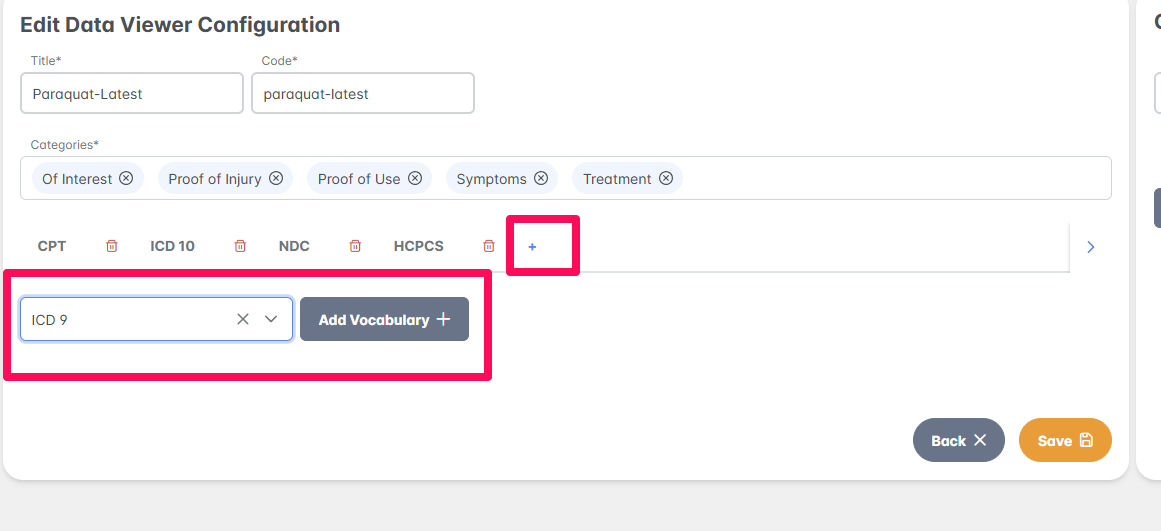
Step 5: Add a New Vocabulary
To add a vocabulary, such as ICD-9:
- Click the ➕ Plus icon.
- Select the desired vocabulary.
- Click Add Vocabulary to confirm.
Step 6: Add Entries to a Section
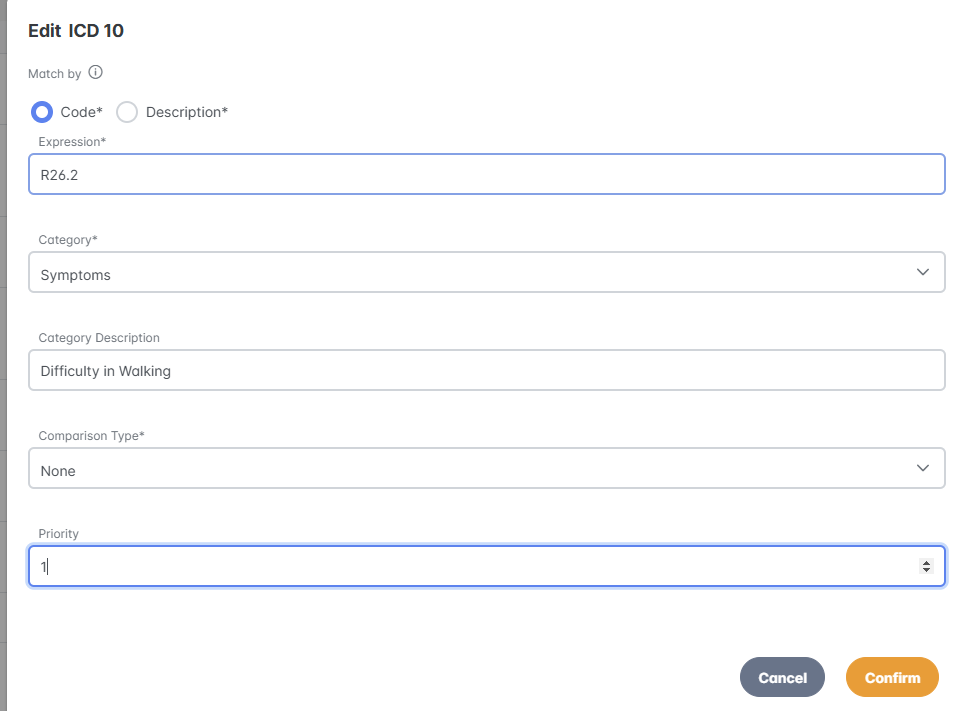
- Navigate to the section and select Add Entry.
- Enter the following details:
- Select Type
- Code: Regular expression (regex) or direct code match.
- Description: Keywords related to the condition or criteria.
- Category: Choose the category for the expression.
- Optional: Add LOINC comparison types for lab values.
- Select Type
Priority Setting:
- Priority 1: Exact ICD codes for proof of injury.
- Priority 2: Keyword descriptions for supporting conditions.
Example: For cervical cancer proof:
- ICD C53.9: Priority 1 – "Proof of Injury"
- Neoplasm: Priority 2 – "Other Cancers"
✅ Once complete, click Confirm to save the entry.
Step 7: Edit or Delete Entries
- To edit an entry, click the ✏️ Pencil icon under Actions.
- To delete an entry, click the ?️Delete icon.
Step 8: Save Your Changes
After making all edits and additions, click Save to finalize the configuration.
⚖️ Mass Tort Case Use Cases
SettLiT can streamline case management for various mass tort cases:
| Case Type | ICD Code/Keyword | Category | Priority |
|---|---|---|---|
| Cervical Cancer | ICD C53.9 – Malignant Neoplasm | Proof of Injury | 1 |
| Hernia Mesh Litigation | ICD T81.5 – Mesh Complication | Proof of Injury | 1 |
| Roundup® Litigation | ICD C85.9 – Non-Hodgkin’s Lymphoma | Proof of Injury | 1 |
| Paraquat Litigation | ICD G20 – Parkinson's Disease | Proof of Injury | 1 |
| General Cancer Keyword | Neoplasm | Other Cancers | 2 |
Need Help?
If you need assistance with configuration or case-specific setups, reach out to the SettLiT Support Team. We’re here to help!