
During a mass tort case, there will be developments that require updates to the qualification criteria. As a result, you may need to create different iterations of the tort configuration files.
To facilitate this, we've enabled export and import options, allowing you to create various versions of the configuration files.
Step 1: Navigate to your configuration file link.
Step 2: Open the configuration file that you wish to export.
Step 3: Select the Export button in the top right corner.

You will be asked to save this JSON file locally on your computer. Select Save.
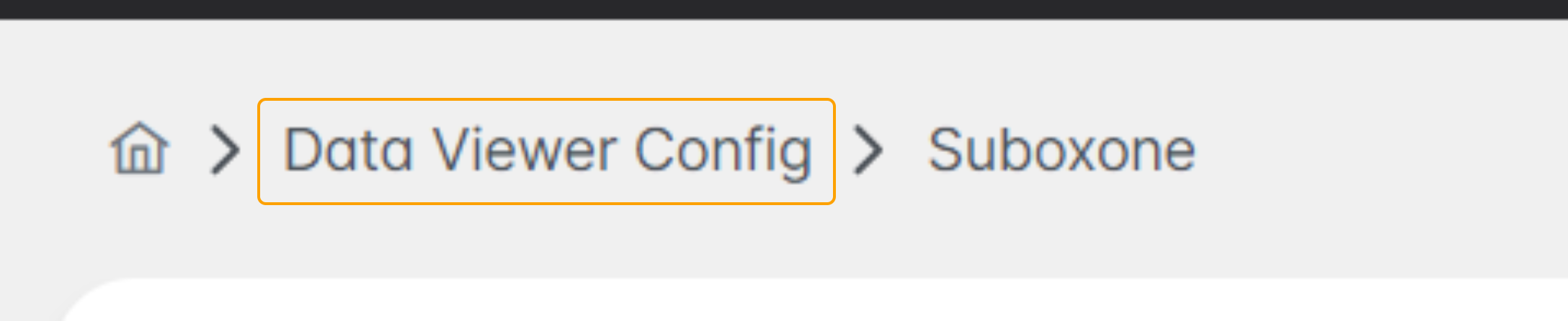
Step 4: Once the file is saved to your computer, navigate back to the Configurations home screen by selecting Data Viewer Config:
Step 5: Select Add Configuration.

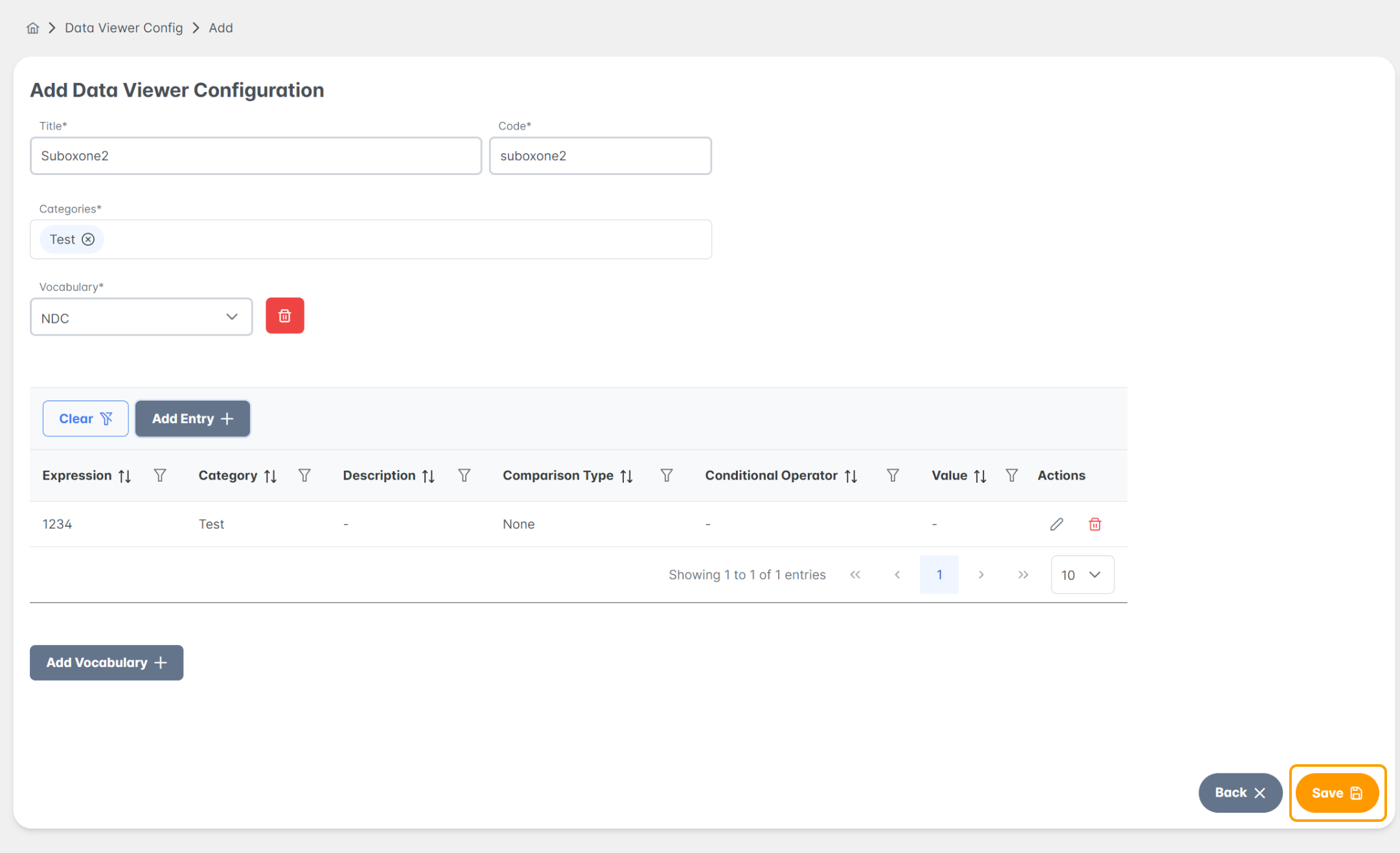
Step 6: Populate all fields required including:
- Title: name of Tort + identifier that it is another version
- Code: name of Tort (no spaces or capital letters)
- Category: "Test"
- Add Vocabulary: NDC
- Add Entry
- Expression: 1234
- Category: Test
- Select Confirm
Once all fields are populated, Click SAVE.
Step 7: Navigate back into that same configuration file in order to import.
Step 8: Select Import.

Step 9: Open the saved JSON file from your computer. Select Open and then Import.
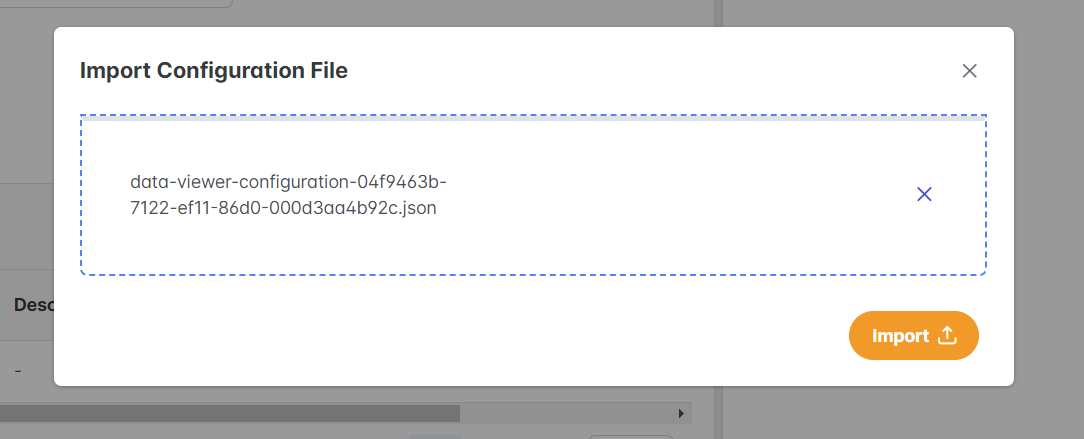
Step 10: The configuration file will be imported. Changes can be made and select Save.
Please see the help desk article on how to Edit your Configuration file found here.
Any other questions, please do not hesitate to reach out to your support team!