
SettLiT has connected to our physician network to establish a treatment relationship for care planning services and, at the discretion of a treating medical provider, diagnostic, therapeutic, imaging, and laboratory services followed by a HIPAA request.
The following steps outline the process to participate in our Care Connect Service.
PLEASE NOTE: Your client is only eligible if they currently live in a Care Connect supported state. These states include:
- Florida
- Texas
- Nevada
- Tennessee
Step 1: Log into the portal and navigate to your client profile of which you'd like to place the Care Connect request.
Please note the client's profile must be completed with the SettLiT Patient Data Agreement signed in order to participate in the Care Connect program.
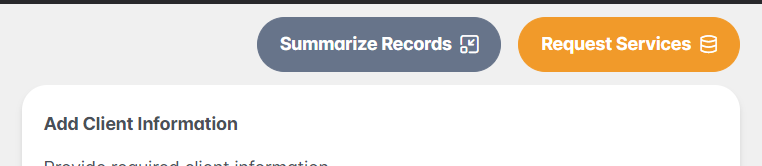
Step 2: Select the Request Services button on the client profile.
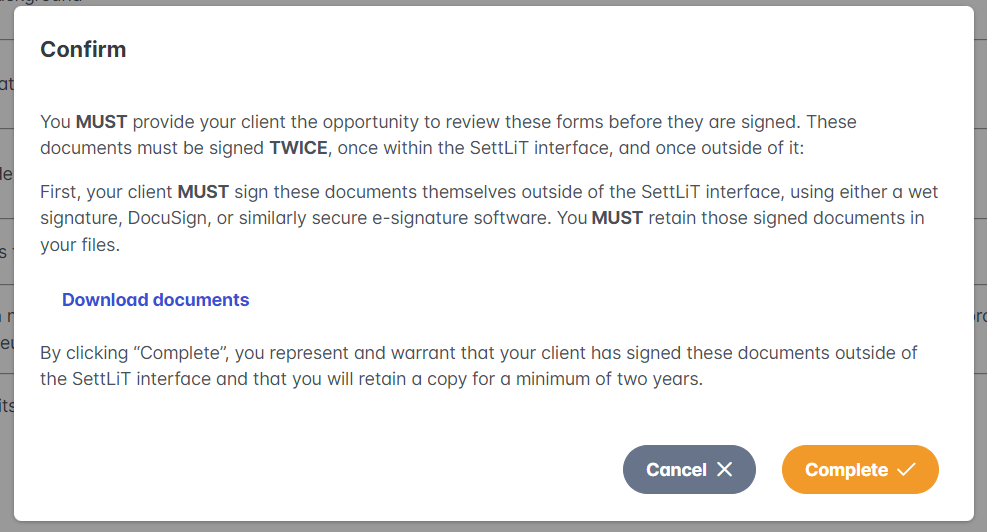
Step 3: Select Care Connect. A pop up will allow you to Download Documents to provide to your client for signing.

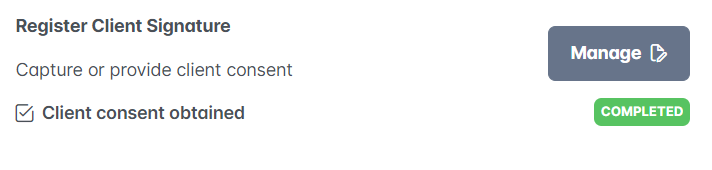
Step 4: When the client has signed the documents, navigate back to the client profile in order to upload the document. Select 'Manage' under the Register Client Signature.
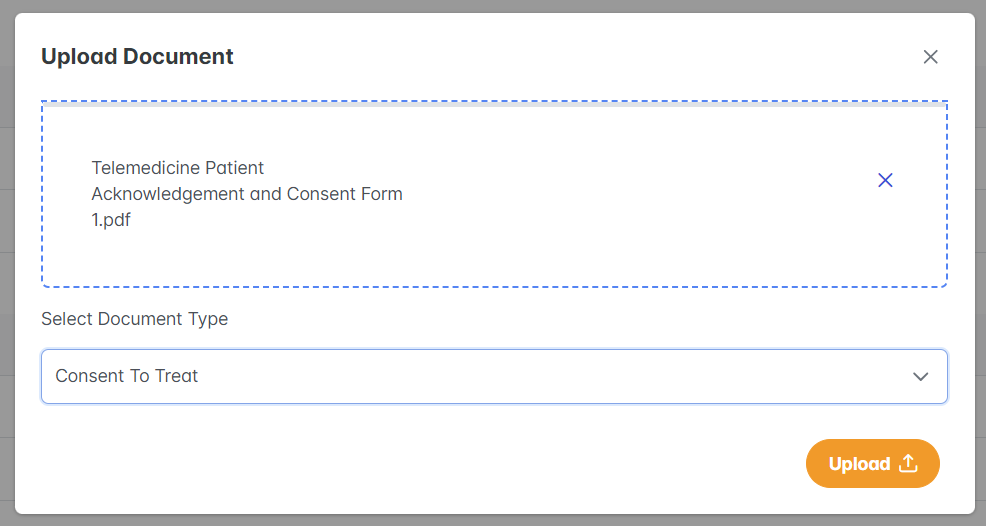
Step 5: Select Upload Document.

Please note there is another button to 'Request Consent to Treat'. This option allows you to send the Care Connect Package directly to the client via Email.
Choose the document that the client has signed and Select the type of Document using the drop down menu. Select Upload.
Step 6: Navigate back to the client profile in order to Request Services.
Step 7: Select Care Connect and choose "Complete". Read the confirmation section regarding the client signature. Select 'Proceed to affix signature'

Step 8: Check the box for Care Connect as well as the Authorize checkbox and select Approve & Submit.
Your Care Connect query will begin running! Check back in 72 hours for the results.
If you have any questions, do not hesitate to reach out to your support team!