
The following steps will walk you through how to register a client's signature through an engage link sent to them via email or SMS text message.
Once you select Save on the client information, you will be taken to the client dashboard view.
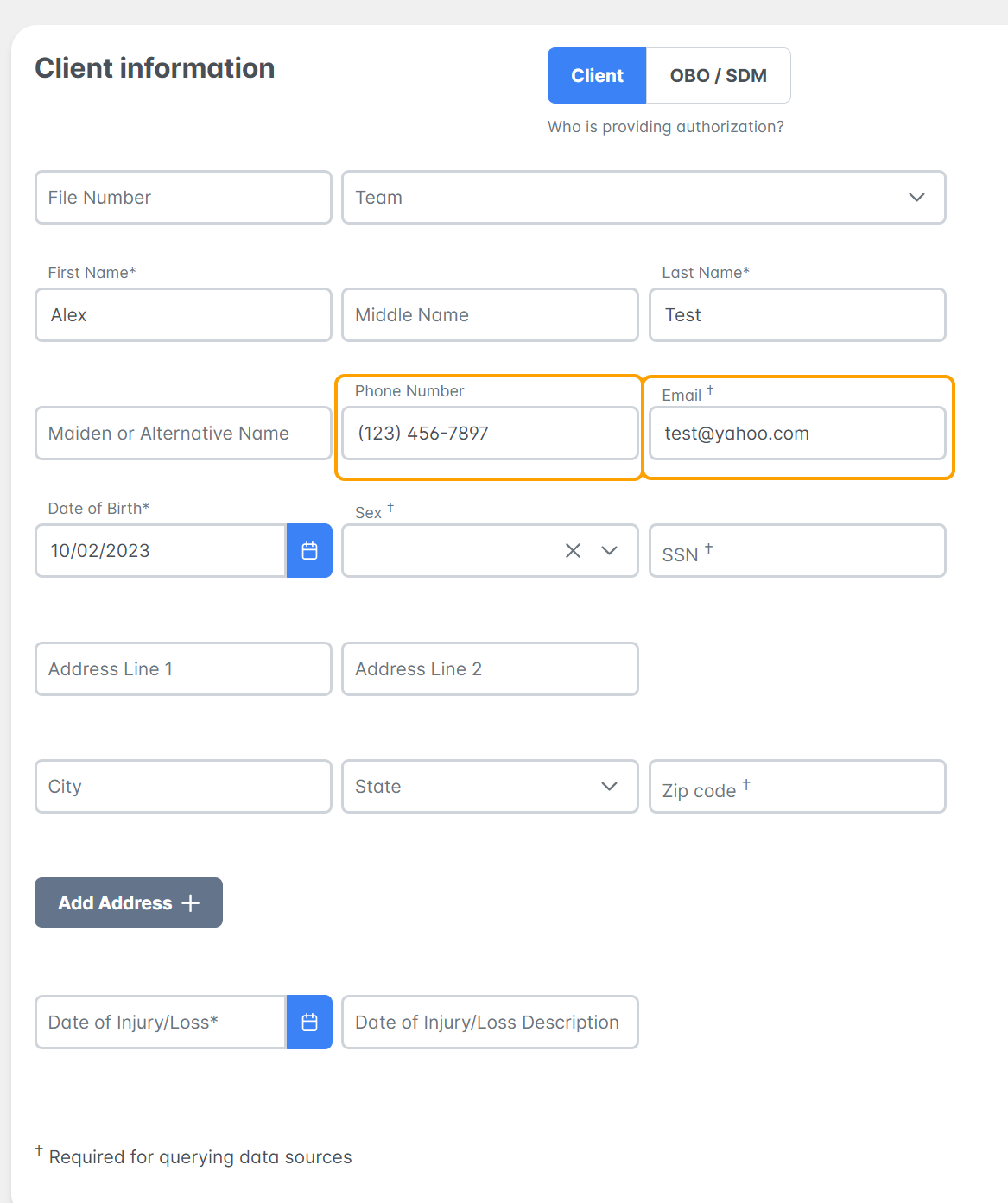
Step 1: Ensure the client email OR mobile phone number is populated on the client information page.
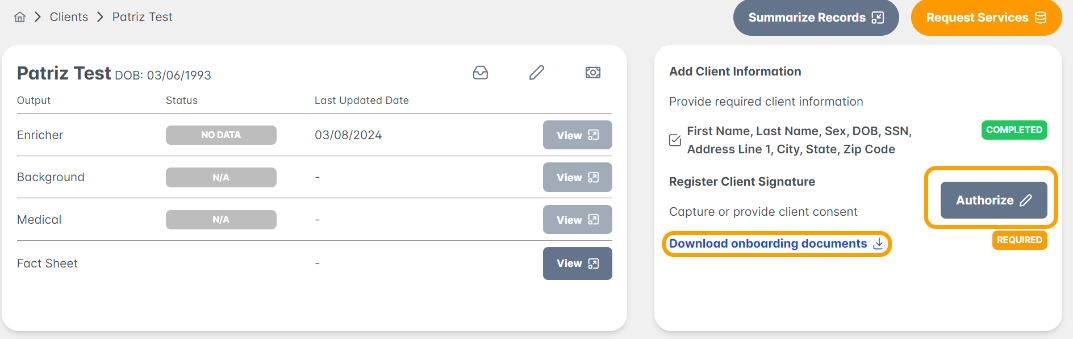
Step 2: To continue completing the clients signature, select Authorize on the client dashboard.
Note: There is an option to Download the Patient Agreement directly from this screen.
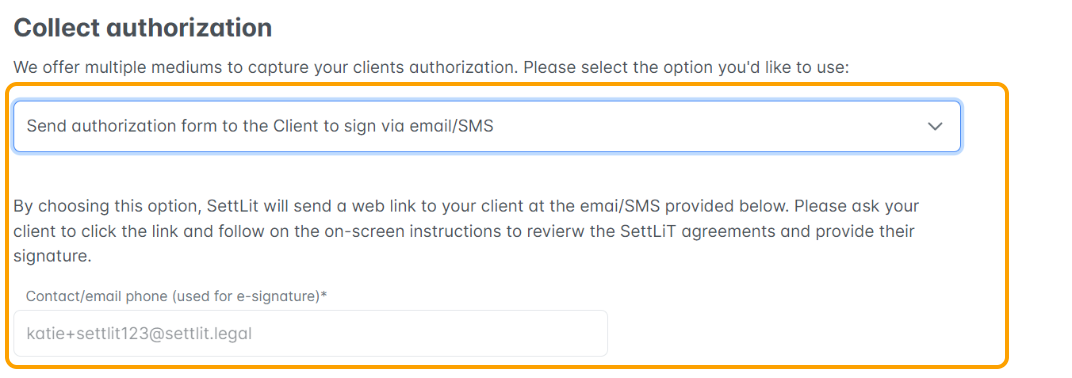
Select Send Authorization Request. This will send an email to the client as outlined below.
Below is a template of how the email notification will appear for your clients.
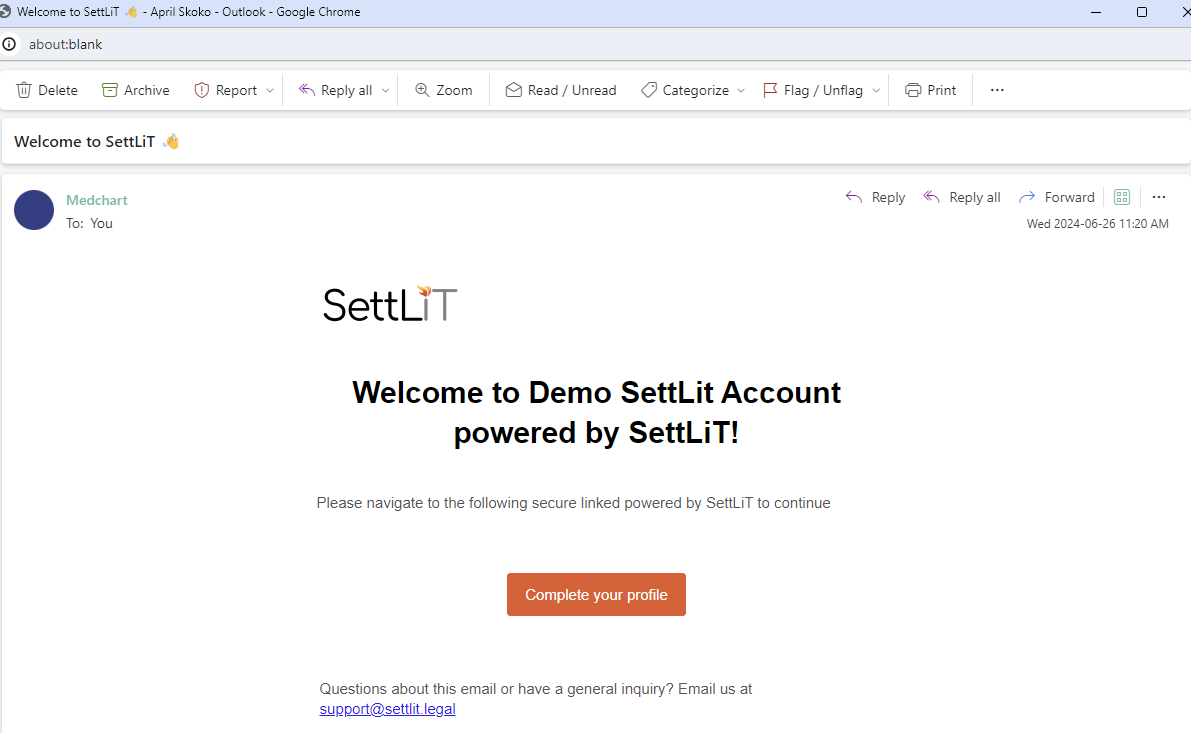
Step 3. Once your client selects "Complete your profile" they will then be navigated to the following screen (see image below) to confirm their information and provide their signature and initials via "Get Started"
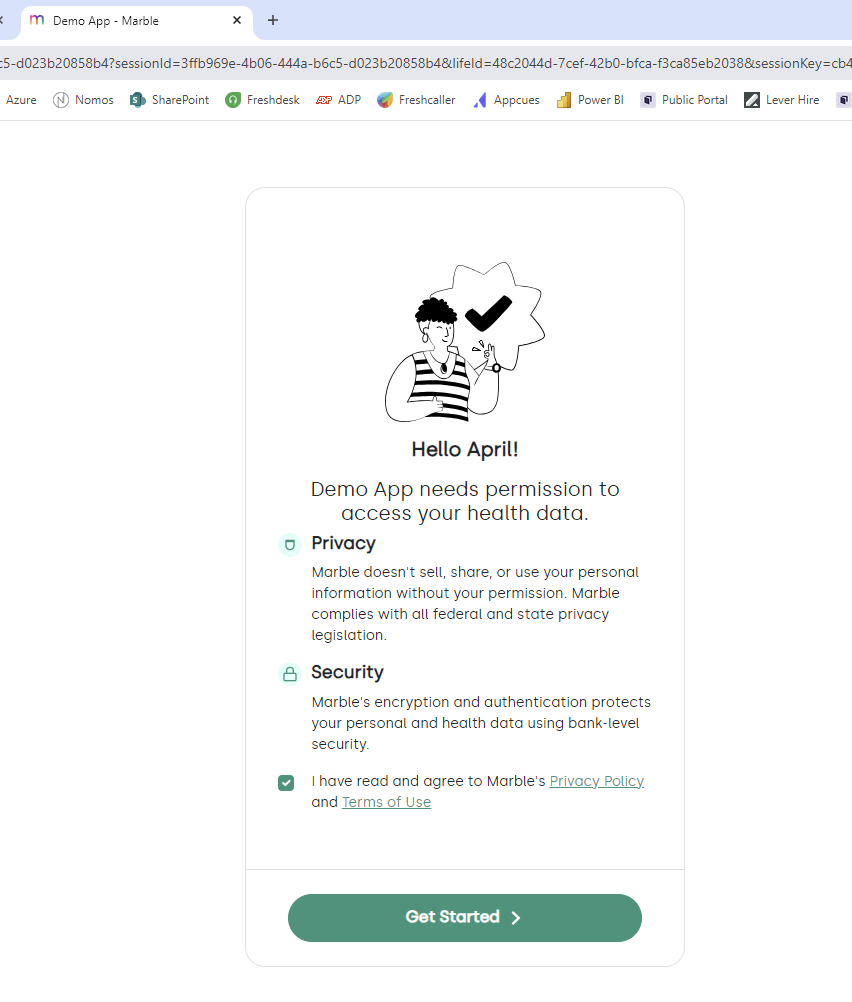
Step 4. Your client will then be prompted to confirm their demographics
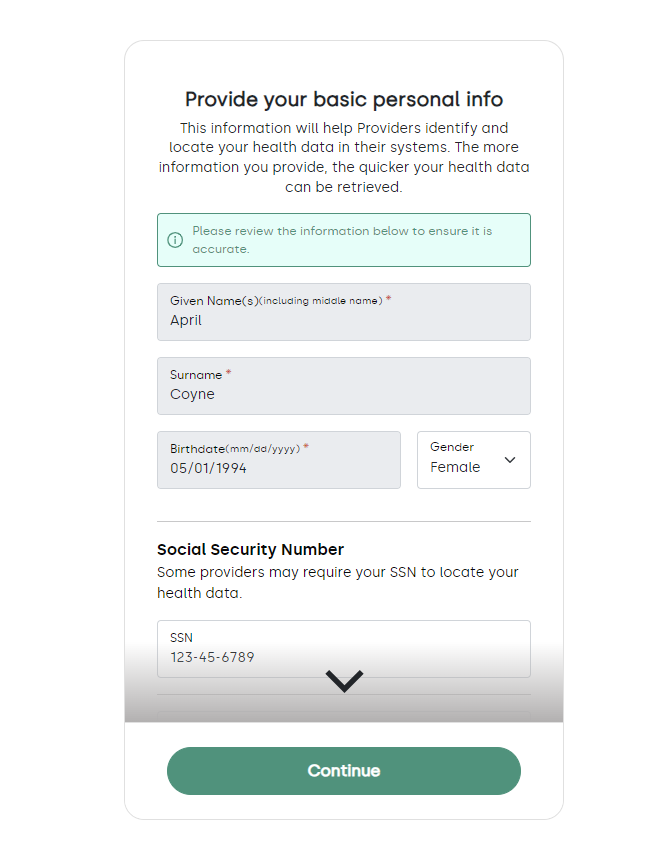
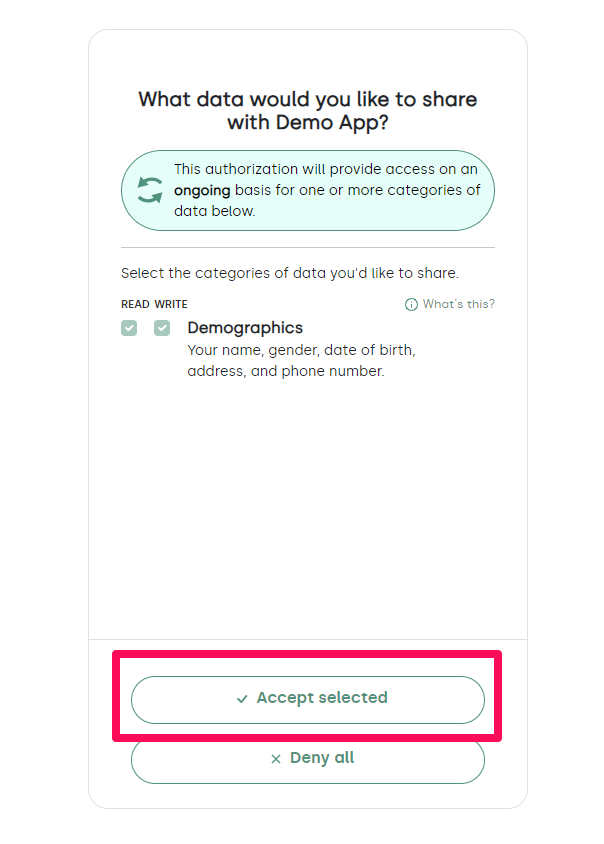
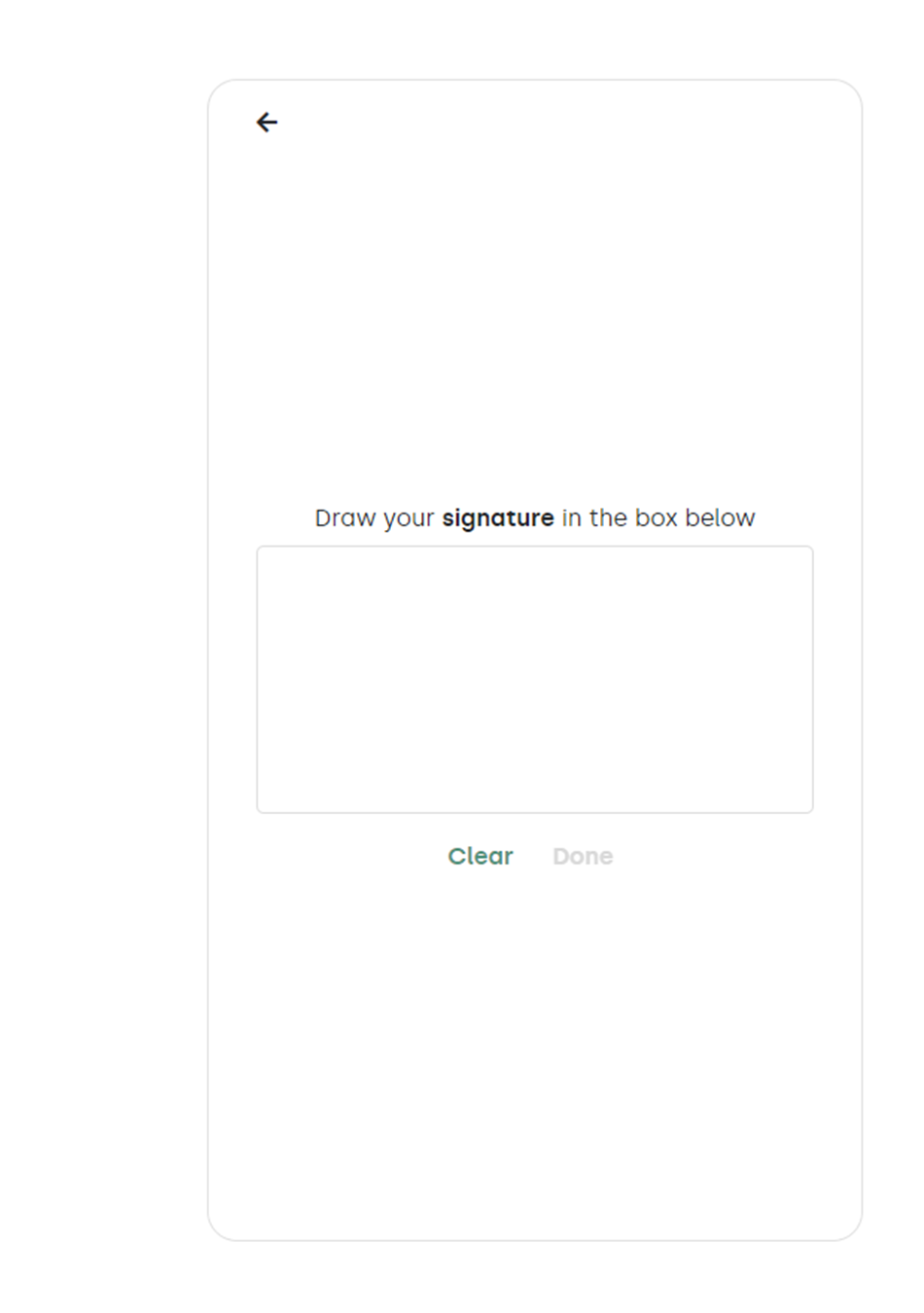
Step 5. Your client will then review and sign the patient agreement
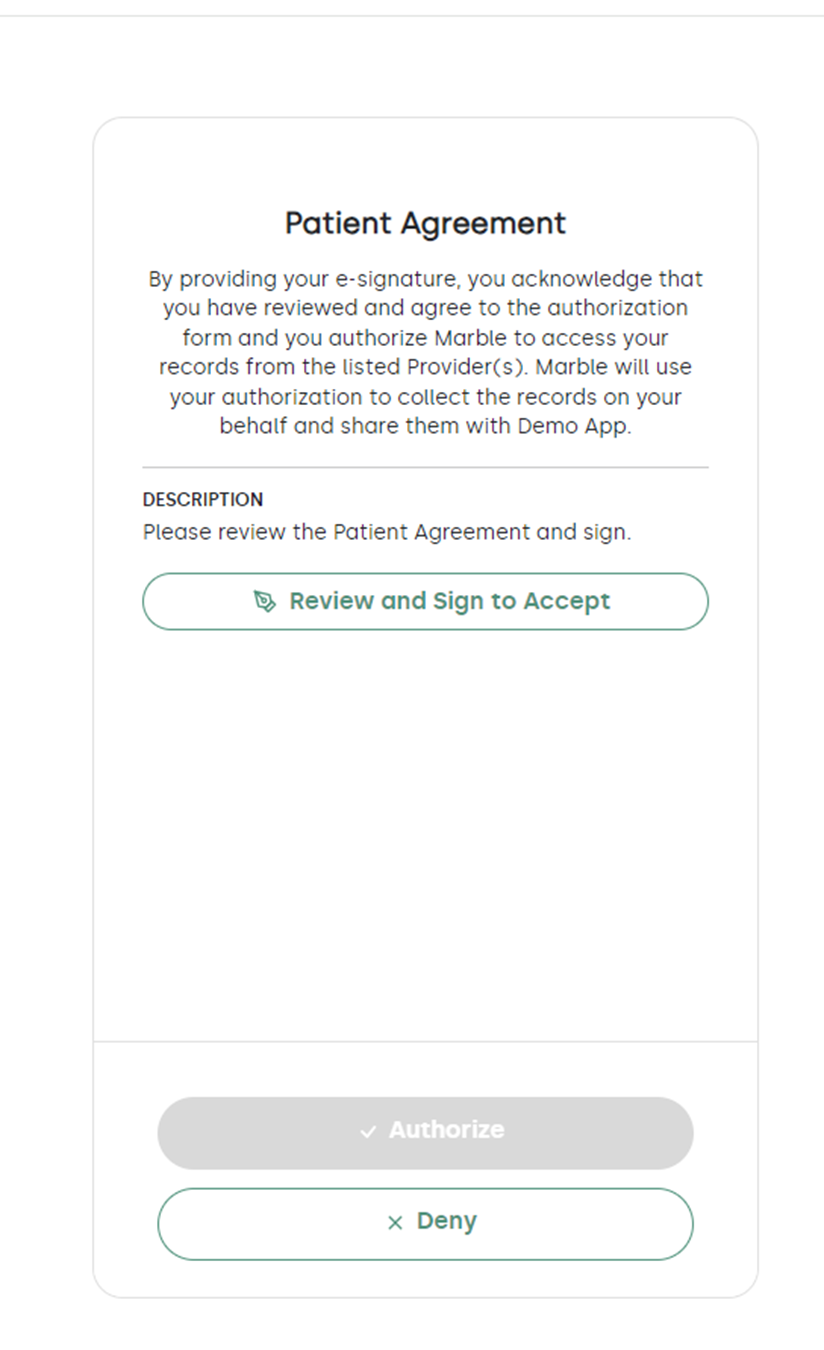
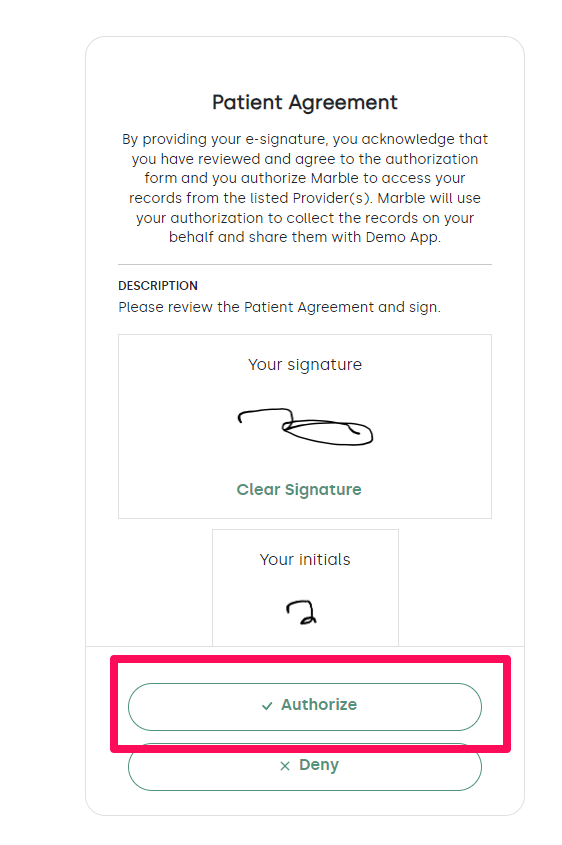
Step 6. Lastly, the client will have to select “Authorize" for their signature/initials to be saved!
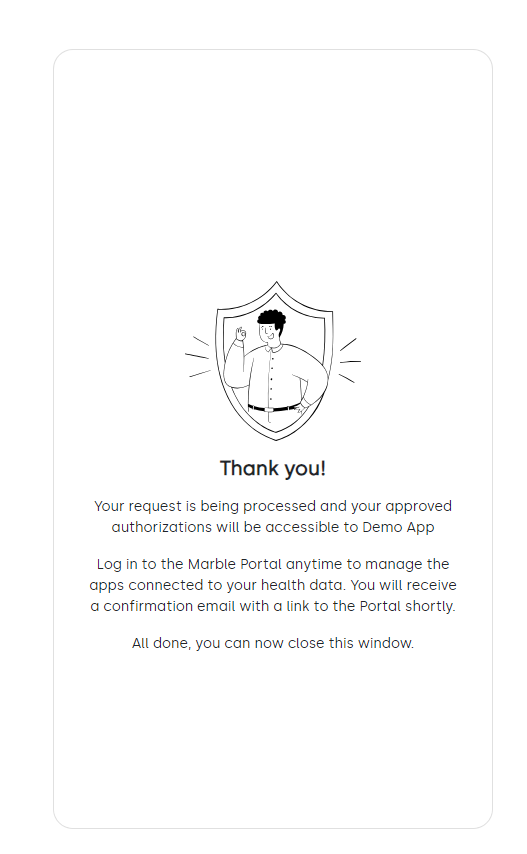
Step 7. The client will then review the patient agreements and click the “Sign Document” button when done. Scroll to review all pages of the document.
Great job! You now know how to obtain your clients signature.
Please reach out to us at support@settlit.legal if you have further questions!